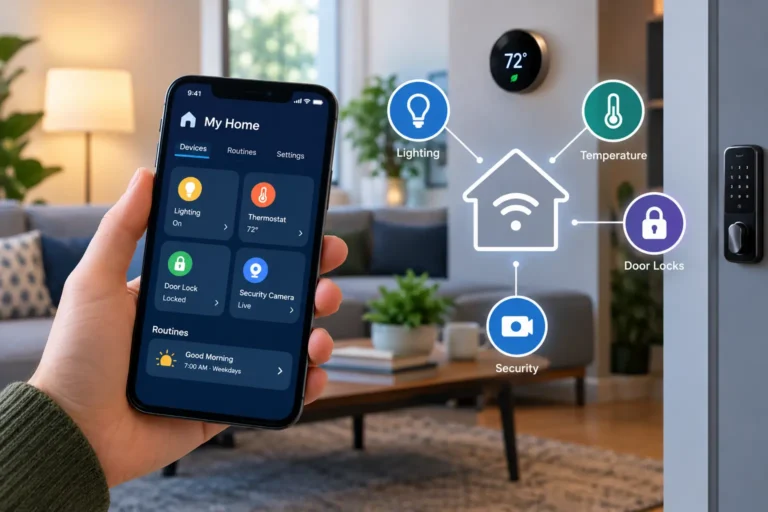
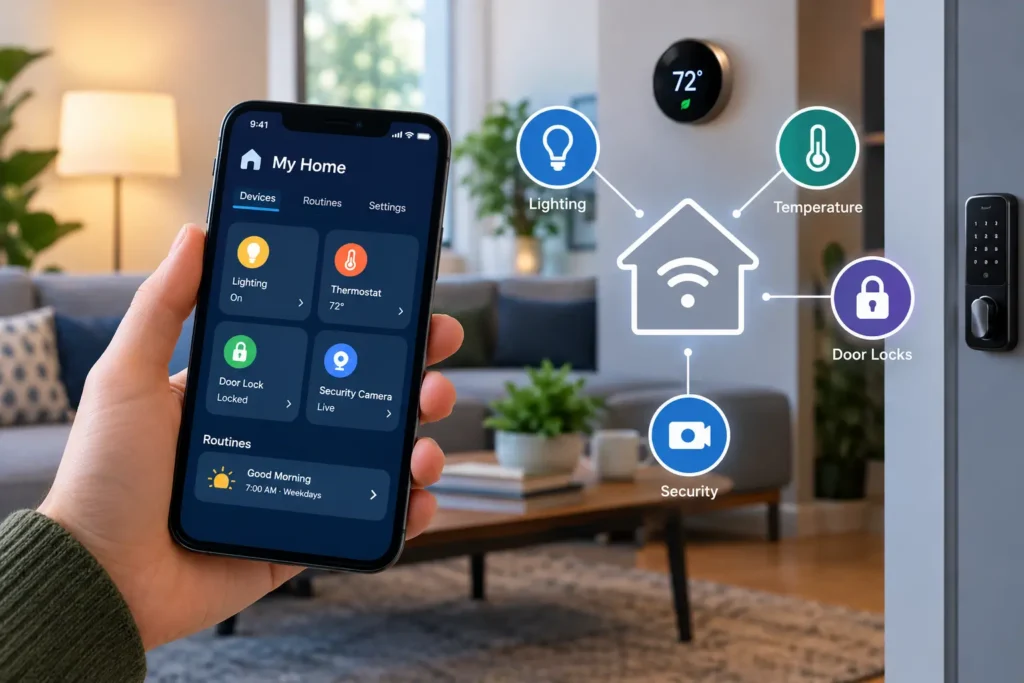
Home automation apps let you control compatible smart home devices and create routines that run on a schedule or respond to events. They bring functions such as lighting, temperature, and door-lock control into one interface, helping devices work together instead of requiring a separate action for every task.
That sounds simple until your new bulb needs a different app, your motion sensor needs a hub, and your evening routine stops working when the internet drops. Choosing the right system starts with understanding those connections—not downloading whichever app has the most features.
How Home Automation Apps Work
The app is your control panel. Behind it, commands travel through your home network, a hub, an online service, or a combination of these. The route depends on the device and its integration.
Control and automation are different. Tapping a button to switch on a lamp is control. Having that lamp turn on when a sensor detects movement after sunset is automation.
A useful routine usually has three parts:
- Trigger: Something happens, such as a door opening.
- Condition: A requirement must be met, such as it being nighttime.
- Action: A device responds, such as a hallway light switching on.
Conditions prevent annoying behavior. Without a nighttime condition, that hallway light might switch on at noon. Platforms use different names for these building blocks; Google Home’s automation editor calls triggers “starters.”
Compatible products can include smart lights, plugs, thermostats, locks, blinds, sensors, and security cameras. However, seeing a device in an app doesn’t guarantee that every setting or function is available there.
Which Home Automation App Fits Your Household?
There isn’t a universal best option. A practical starting point is the equipment your household already uses, followed by the routines you actually want.
| Ecosystem | A sensible fit for | What to check first |
|---|---|---|
| Amazon Alexa | Households using Echo speakers and voice-triggered routines | Your exact Echo model’s connectivity and the accessory’s supported actions |
| Google Home | Households already using Google Home or Nest devices | Matter hub requirements and available automation starters |
| Apple Home | Households centered on iPhones and other Apple devices | Accessory support and home-hub requirements for automations and remote access |
| SmartThings | Mixed-brand setups needing conditional device routines | Hub compatibility and whether the complete routine can execute locally |
These are starting points, not rankings. Android ownership alone doesn’t make Google Home the right choice, and an iPhone doesn’t require you to choose Apple Home.
Alexa routines can start from voice commands, schedules, and supported device events. For Matter accessories, Amazon’s documentation identifies compatible controller hardware; don’t assume every Echo supports the same connections.
SmartThings documents local rule execution when all involved device features and services support it. Adding a cloud-dependent feature can move the rule into the cloud. That distinction matters more than the number of brands shown on a compatibility page.
Check Compatibility Before Buying
Matter helps, but check the actual features
Matter is a shared smart-home communication standard. It can reduce ecosystem restrictions by allowing supported devices to join compatible platforms. Its multi-admin feature also supports connecting a device to more than one platform, as explained in the Connectivity Standards Alliance’s Matter FAQ.
However, platforms add support for device categories and functions at different times. Check the exact model, firmware requirements, and supported controls. A manufacturer’s app may still be needed for advanced settings or maintenance.
A hub and Wi-Fi aren’t interchangeable
A hub coordinates supported devices or runs parts of the system. Thread is a low-power mesh networking technology; a Thread border router connects that network to your wider home network. A smart speaker can contain these functions, so “needs a hub” doesn’t always mean buying another box.
For example, Google Home requires a compatible hub for Matter setup, with Thread border-router support for Thread accessories. Apple allows some Matter setup and local control without a home hub on supported iPhones, but local phone control isn’t equivalent to a complete always-available automation system.
For Apple Home remote access, you’ll need a home hub such as a compatible Apple TV or HomePod. Some Wi-Fi products instead work through their manufacturer’s app without a separate hub.
Start With Routines That Solve Small Problems
A good first automation removes a repeated annoyance and is easy to override.
Morning: At a chosen weekday time, turn on compatible bedroom lights at low brightness and adjust the thermostat. Where supported, add a weather announcement. A coffee maker should only be automated if its manufacturer supports that use; applying power through a smart plug doesn’t necessarily start brewing.
Leaving home: After the last participating household member leaves, turn off selected lights and adjust the thermostat. Using only your phone’s departure as the trigger could leave someone else sitting in darkness. Treat automatic door locking as a separate setup that needs careful testing and a manual fallback.
Nighttime movement: Use a hallway sensor to switch on a dim light during overnight hours, then turn it off after a suitable period without motion. Check the sensor’s placement so a passing pet doesn’t trigger it constantly.
How to Set Up Home Automation Using a Smart Home App
- Choose a smart home ecosystem. List existing devices and two routines you want. This gives you concrete requirements to compare.
- Check device compatibility. Verify exact model numbers, supported actions, and any hub or bridge requirements. Match electrical products to your country’s voltage and sockets.
- Install the relevant app. Use the official app and create your household account. Check regional availability before buying accessories.
- Connect the devices. Follow the manufacturer’s pairing instructions and install updates. If pairing fails, check the required network band and permissions before repeatedly resetting everything.
- Give devices clear names. “Desk lamp” is easier to recognize than “Bulb 03.” Avoid near-identical names that confuse household members or voice assistants.
- Organize rooms. Assign devices to their actual locations so room controls behave predictably.
- Create your first automation. Start with one trigger and one action, such as switching on a lamp at sunset. Add complexity after it works reliably.
- Test the automation. Test the actual trigger, conditions, and manual override. Manually running the actions alone doesn’t prove the trigger works.
- Add security and privacy settings. Enable stronger account authentication where offered, review permissions, and invite household members individually instead of sharing passwords.
- Expand gradually. Use the setup for several days before adding devices. This makes faults and conflicting routines easier to identify.
Reliability, Privacy, and the Real Cost
Local control means a command or routine can run within your home rather than relying entirely on a remote server. It can improve resilience, but only when the complete path supports local operation.
A local light routine might survive an internet outage while weather announcements, remote access, or cloud-linked devices stop responding. Google explicitly notes that automations can depend on internet and service availability. Test a harmless lighting routine with the internet connection disconnected while keeping the router and hub powered. An internet outage and a power failure are different tests.
For privacy, examine what each device collects. A motion sensor and an indoor camera create very different records of household activity. Review recording retention, microphone settings, location permissions, and who can access the home. Keep device software updated and remove access when someone moves out.
Budget for the whole system: accessories, any required hub, installation, and optional subscriptions. Samsung says the SmartThings app is free to download and use. Camera recording, enhanced alerts, or other connected services may still carry ongoing charges. Verify current prices and included features in your country before purchasing.
Start with one room and one useful routine. Expand when it works consistently and everyone in the household understands how to control it.
Frequently Asked Questions
Can one app control all my smart home devices?
One app can control many compatible devices, but no app guarantees complete support for every brand and feature. Check individual models and the specific actions you need. Keep manufacturer apps available when they’re required for updates, advanced settings, or troubleshooting, even if everyday control happens elsewhere.
Do home automation apps require Wi-Fi?
Many setups use Wi-Fi, but individual devices can communicate through Thread, Zigbee, or other supported connections. Your phone may use Wi-Fi to reach the system while a sensor uses a different network. Also distinguish Wi-Fi from internet access: a working home network can remain available during an internet outage.
Can I automate my home without a hub?
Yes, some Wi-Fi devices offer schedules or cloud-based routines through their own apps without a separate hub. Other setups require compatible controller hardware. Check whether the automation runs on the device, in the cloud, or on a hub, and what happens when your phone is away.
Are home automation apps safe?
Security depends on the app, connected devices, account protection, and ongoing updates. Use unique passwords, enable multifactor authentication where available, and limit access to trusted people. Review sensitive permissions and recording settings. A compatibility badge alone doesn’t tell you how a manufacturer handles your personal information.
What should I check when an automation doesn’t run?
First confirm that each device responds individually. Then inspect the trigger, conditions, time zone, and account permissions. Check batteries, connectivity, and any required hub. For location routines, review phone permissions and household participation. Finally, look for another routine that immediately reverses the action you’re trying to perform.
Editorial note: Product documentation reviewed on September 25, 2026. Ecosystem fit recommendations are editorial judgments based on the cited capabilities; no hands-on testing is claimed.